Profile & Membership
Your profile must be complete before you can book. Everything in the portal flows from here.
Setting Up Your Profile
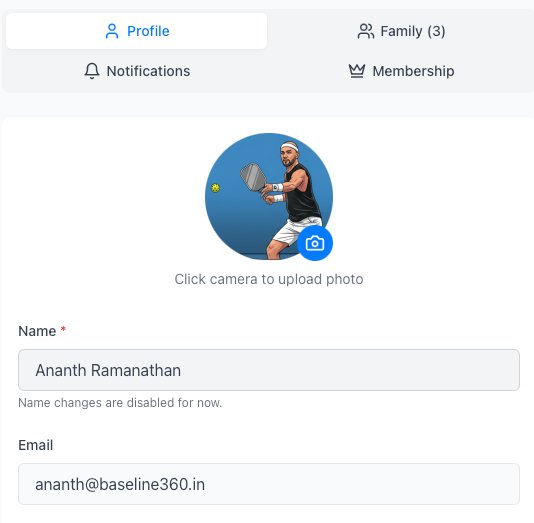
Go to My Profile from the sidebar. The Profile tab is where you manage your personal details.
- Upload or change your profile photo — click the camera icon
- View your name (not currently editable)
- Update your email and date of birth
- Select your primary racquet sport
- Set your pickleball level — this helps match you to suitable games
- Add your WhatsApp number — used for booking notifications
Adding Family Members
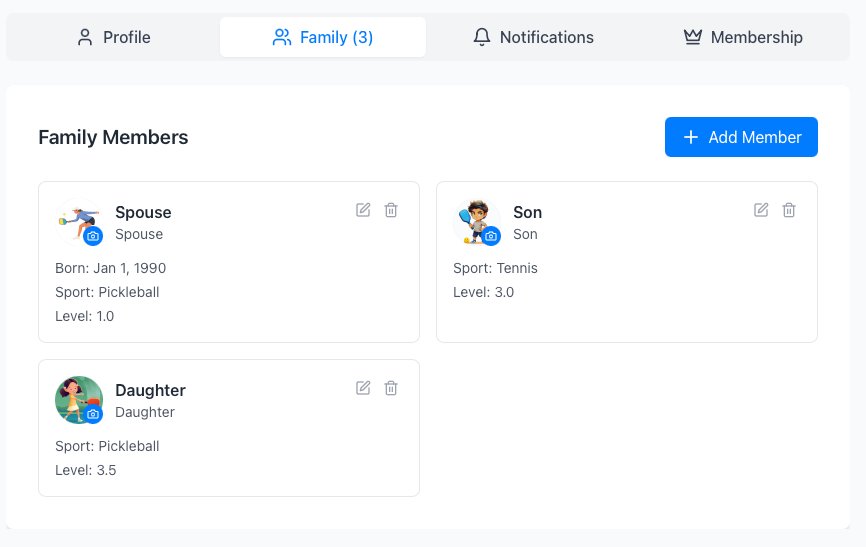
Family members share your membership and credit pool. You can add up to four.
Reviewing Your Membership
The Membership tab shows your current plan and what it allows.
Advance Booking Window
How many days ahead you can book. Annual: 7 days. Quarterly: 5 days. Monthly: 3 days.
Maximum Active Slots
Total hours of confirmed bookings and active queue entries you can hold at one time.
Notifications
Use the Notifications tab to view system updates related to bookings, queue results, and membership activity.
Booking a Slot
Two ways to book depending on how far ahead you're planning. Credits are reserved when you book and charged after the game.
⚡ Instant Booking
Within 48 hours. Book immediately, confirmed instantly.
🕐 Queue Booking
More than 48 hours away. Join the queue — resolved within 24 hours.
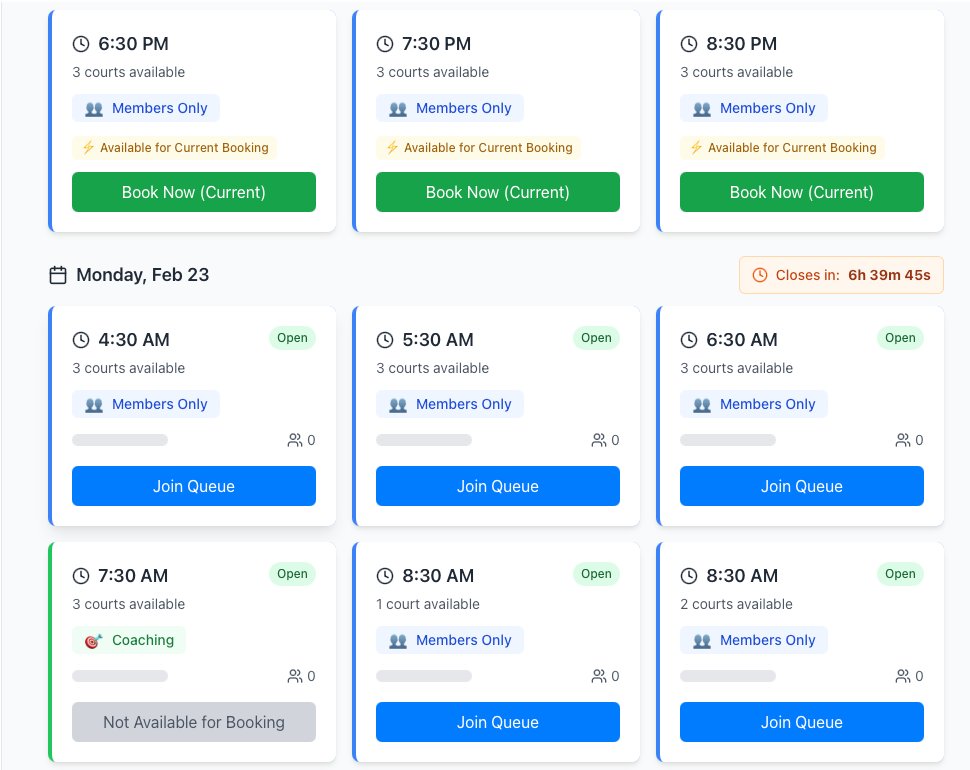
Instant Booking (within 48 hours)
Slots marked Available for Current Booking can be booked immediately.
Queue Booking (more than 48 hours ahead)
Future slots show a Join Queue button. Queues are resolved within 24 hours.
Not allocated: Reserved credits released back to your balance.
Releasing a Booking
Open the booking and tap Release current booking.
- More than 24 hours before — credits return in full, no penalty
- Less than 24 hours before — 25% cancellation deduction applies
Dashboard
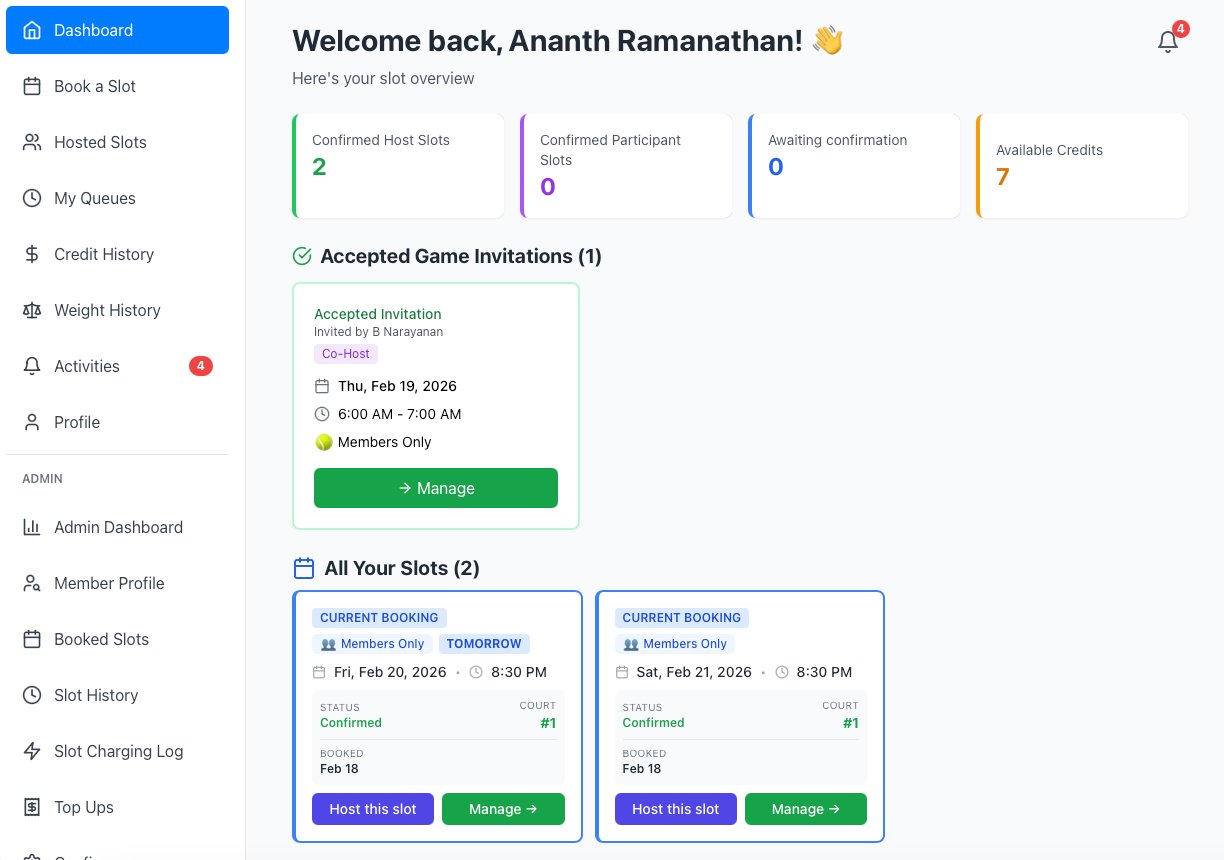
Your control centre. Live view of all bookings, queues, invitations, and credit balance.
What You'll See
Confirmed Host Slots
Games you have booked and are hosting.
Confirmed Participant Slots
Games you've been invited to and accepted.
Awaiting Confirmation
Invitations and co-host requests pending your response.
Available Credits
Credits free to use for new bookings.
Managing a Confirmed Booking
Click Manage → on any slot card to open the Slot Details screen. Add or remove participants, assign a co-host, view credit allocation, and release the booking.
Viewing Your Queues
Go to My Queues from the sidebar. Under Active Queues you'll see your rank, chance indicator, countdown timer, and the option to withdraw.
Not allocated: Credits released. Your queue weight increases to improve future chances.
Setting Up Your Game
Once your slot is confirmed, open it from the Dashboard to manage participants. Each game supports up to 6 players.
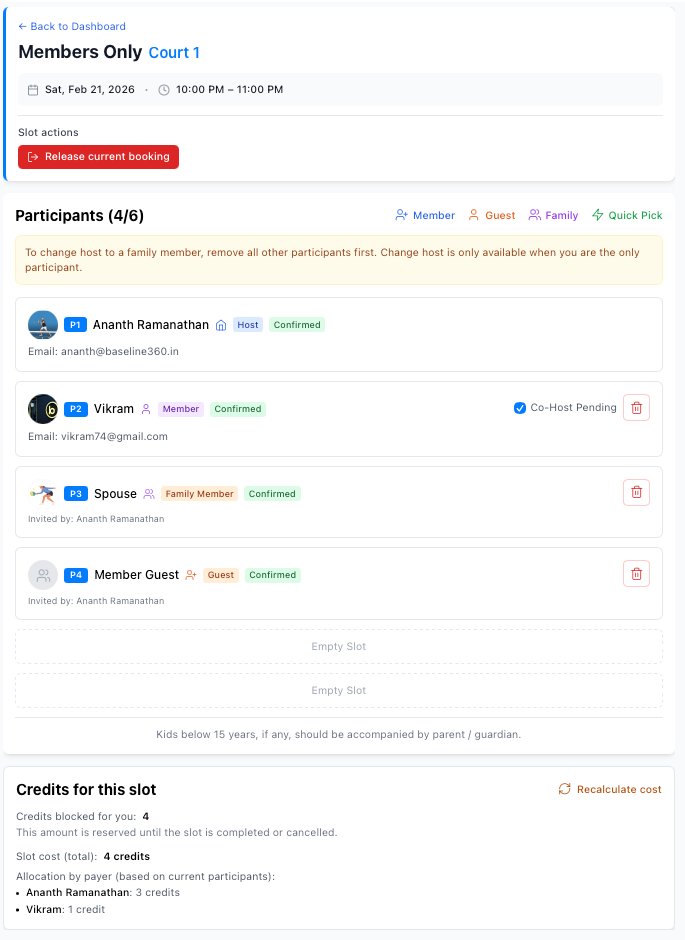
Invite a Member
Add a Guest
Guests are added immediately — no acceptance needed. Credits charged to the inviter.
Add a Family Member
Family members must be linked to your profile first under the Family tab.
Assign a Co-Host
A co-host can invite members, add guests and family, and remove participants (except the Host).
- Locate the confirmed member in your participant list
- Select the Co-Host option next to their name
- Once they accept, they can help manage the game
Remove a Participant
Click the delete icon next to any participant. Credit allocation updates automatically.
Credits & Fair Usage
Reserved when you book. Charged after you play. Returned if you cancel in time.
How Credits Work
Available
Credits free to use. Your balance minus anything currently blocked.
Blocked
Reserved for confirmed bookings or active queue entries.
Credit Split During a Game
Each participant costs 1 credit, charged to whoever invited them.
- Each member pays 1 credit for themselves
- Guests and family cost 1 credit — charged to whoever invited them
- Co-hosts pay for guests they add
Cancellation Policy
✅ More than 24 hours
Credits return in full. No penalty.
⚠️ Less than 24 hours
25% cancellation penalty. Shown in Credit History.
Topping Up Credits
- Go to Credit History from the sidebar
- Tap Top Up Credits
- Select number of credits (up to 16 per top-up)
- Confirm and pay — GST at 18% applies
Weight & Fair Queue Allocation
If you're not allocated a queued slot, your weight increases automatically — improving your priority in future queues. View your weight history from the sidebar.